Module 1: Foundations
tmux + Claude Code for Ops Work
Lesson 1.1 — Why tmux for Agentic Coding in RevOps / DevOps / SecOps
1. Lesson Overview
This lesson sets the mental model:
- What tmux is and why it matters for always-on, remote, multi-pane AI work
- What Claude Code is and how Anthropic themselves use it
- How this combo maps to MTTR, deployment frequency, incident handling, SecOps
You're basically answering: "If I'm already in Cursor/VS Code with AI, why bother adding tmux?"
2. Lesson Deliverables
For learners
For you (course assets)
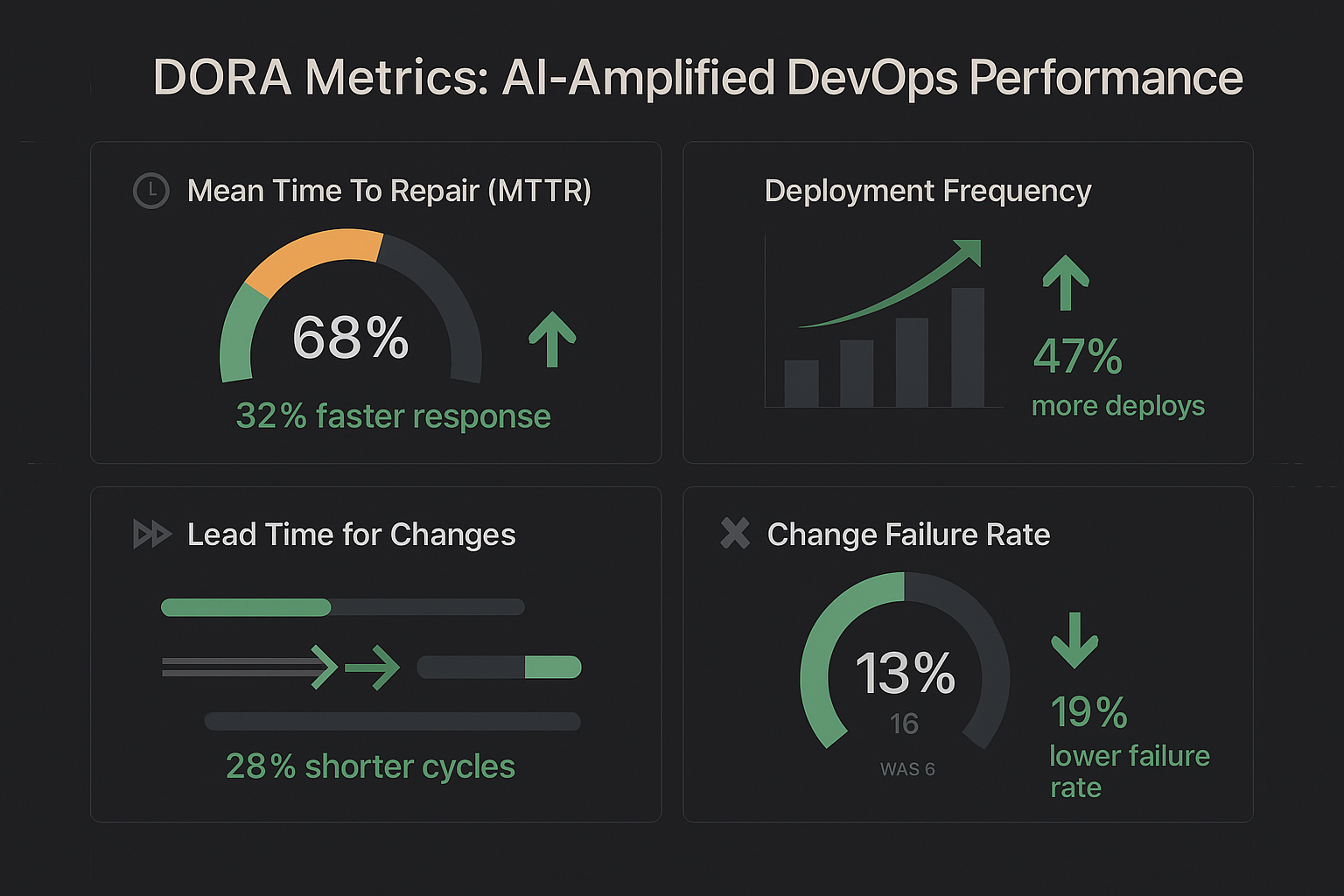
- Slide with tmux definition and a simple diagram: terminals → tmux → sessions/windows/panes.
- Slide with Claude Code overview and 2–3 bullets on agentic capabilities (execute commands, edit files, manage git).
- Slide with DORA + Anthropic "AI as amplifier" summary.
Architecture Diagram
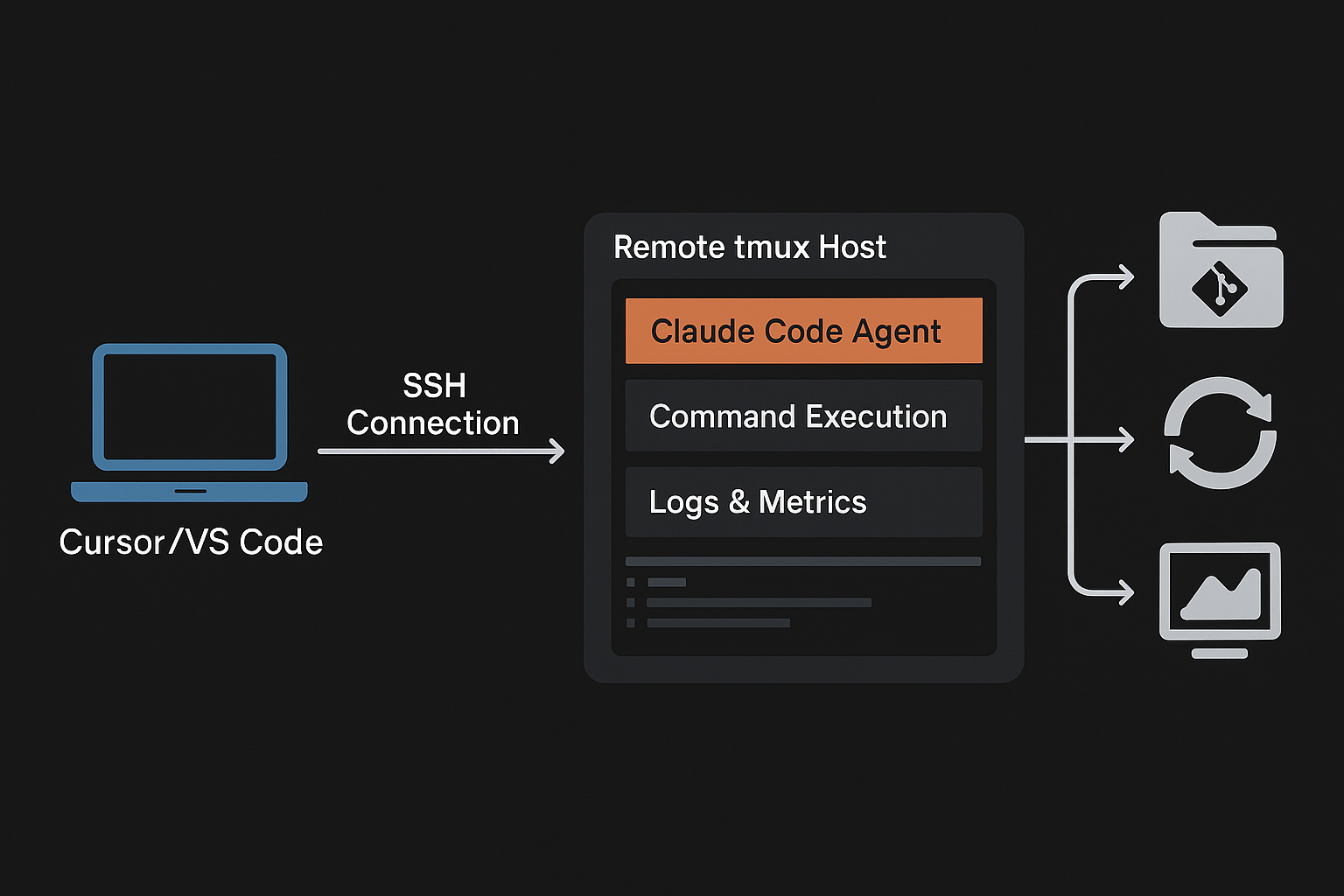
tmux Hierarchy
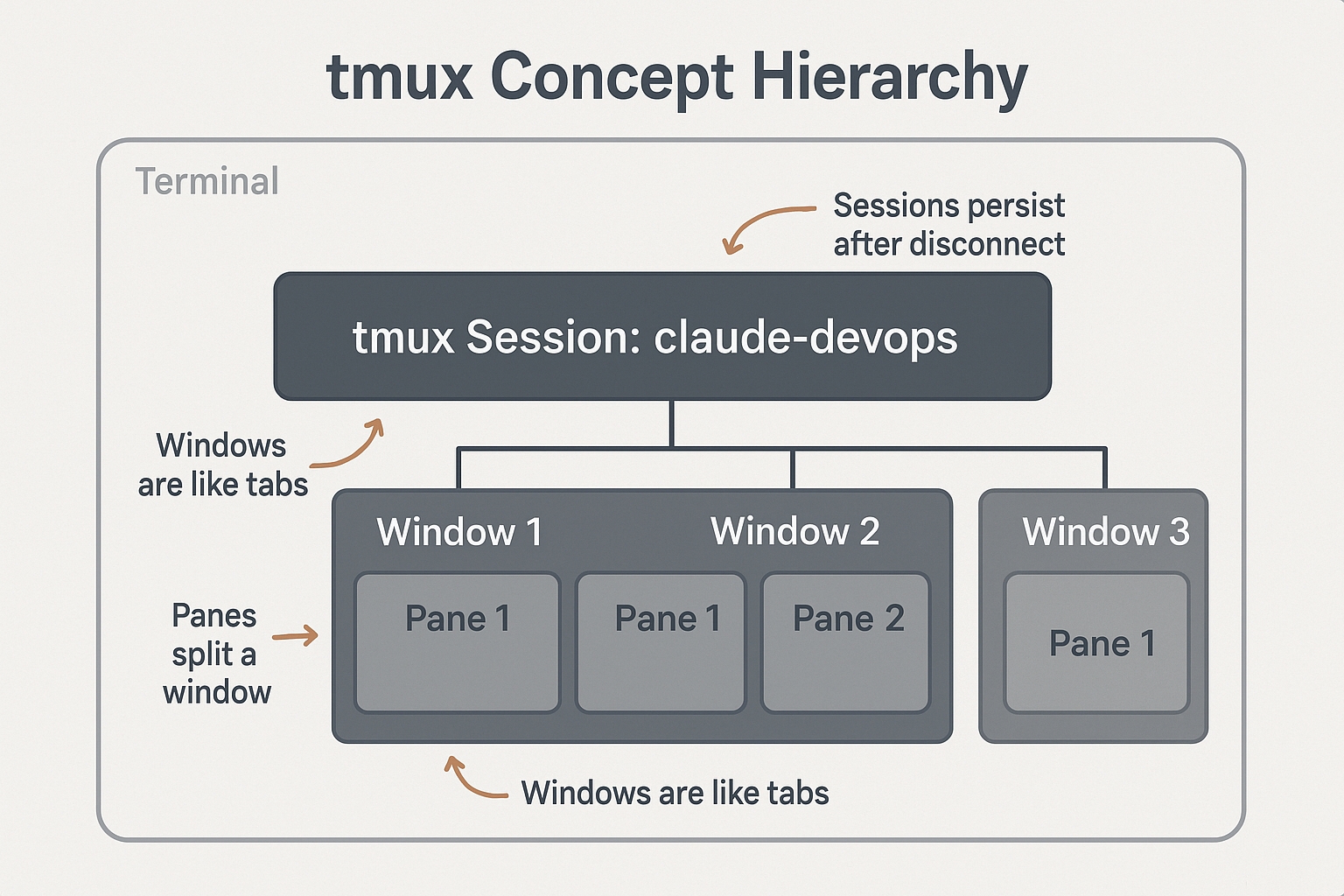
DORA Metrics Dashboard
3. Step-by-Step Walkthrough
You can present this as an on-screen guided exercise.
Step 1 — Anchor definitions
tmux Definition
"tmux is a terminal multiplexer that lets you create and control multiple terminals from a single screen, detach them, and reattach later."
Claude Code Definition
Claude Code is an agentic coding tool that lives in your terminal, understands your codebase, and executes routine tasks via natural language.
Have learners write those two definitions in their notes, in their own words.
Step 2 — Draw the architecture
Ask them to draw:
- Their laptop with Cursor/VS Code.
- An SSH connection to a dev/ops box.
- On the box: tmux, with 2–3 panes labeled "Claude Code", "Logs", "Metrics".
- Arrows from panes to:
- Git repos
- CI/CD system
- Observability stack (logs/metrics)
- Security tools (for SecOps folks)
This visually anchors "tmux as the bus" for agentic workflows.
Step 3 — Connect to outcomes
Have them pick two metrics that matter:
DevOps
MTTR, deployment frequency, lead time, change failure rate. DORA's AI report explicitly frames AI as an amplifier for these.
SecOps
Time-to-detect, time-to-contain, number of untriaged alerts.
RevOps
Time-to-fix billing/reporting jobs, reliability of data pipelines that impact revenue.
Exercise: Your Commitment Statement
Write: "I'm adopting tmux + Claude Code to reduce X and improve Y in my role."
This becomes a recurring reference throughout the course.
4. Instructor Suggestions
Hook idea
Open with a live example: you drop Wi-Fi on your laptop while a migration runs, then reattach to tmux and show it kept going. (Great visceral "aha".)
Story angle
Briefly mention Anthropic's internal study: engineers delegate ~20% of tasks to Claude and up to half their work is AI-involved, but they're worried about skill atrophy and collaboration. Then pitch tmux as a structured way to use AI so humans stay in control.
B-roll suggestion
Overlay DORA's "AI as amplifier" phrasing when you connect to MTTR / deployments.
Lesson 1.2 — tmux Basics, Tuned for AI Workflows
1. Lesson Overview
Goal: give learners just enough tmux to comfortably live in it all day with Claude Code.
We focus on:
- Sessions, windows, panes
- A minimal
.tmux.conffor AI work - A short keybinding kata (reps) so they don't get lost
2. Lesson Deliverables
For learners
For you
- Downloadable
.tmux.confstarter. - Screenshot of a 3-pane layout you'll use repeatedly in later lessons.
- One-slide cheat sheet (mapped to Red Hat/cheatsheet defaults for credibility).
tmux Keybindings Quick Reference
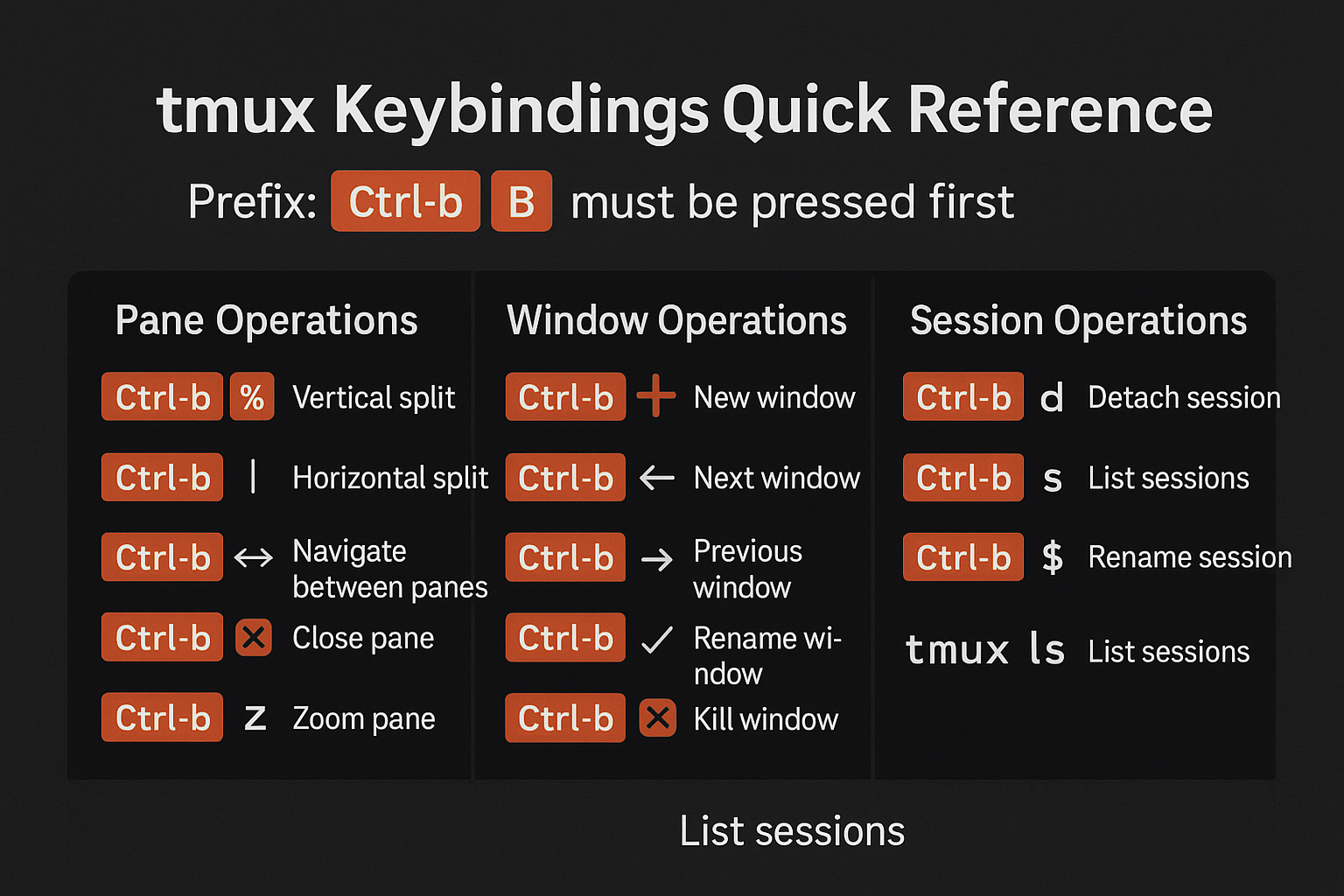 Download Keybindings Reference
3. Step-by-Step Walkthrough
Step 1 — Install & sanity-check
Have learners confirm:
tmux -VIf it prints a version, they're good. (If not, you can link out to OS-specific install instructions.)
Step 2 — Create & name a session
On screen, demo:
tmux new -s claude-foundationsExplain:
new -screates a named session.- tmux starts with one window and one pane by default.
Ask learners to:
- Type a command (
ls,pwd) so they see normal shell usage inside tmux. - Hit
Ctrl-b dto detach. - Run
tmux lsto see the session. - Then
tmux attach -t claude-foundationsto reattach.
The "Always-On" Concept
This cements the "always-on" idea. Your session keeps running even when you disconnect!
Step 3 — Split panes (cheat sheet kata)
Show them the must-know bindings (default prefix Ctrl-b):
# Pane operations
Ctrl-b %     # vertical split
Ctrl-b "     # horizontal split
Ctrl-b arrows # move between panes
Ctrl-b x     # close pane

# Window operations
Ctrl-b c     # new window
Ctrl-b n/p   # next/previous window
60-Second Keybinding Challenge!
From inside claude-foundations:
- Hit
Ctrl-b %(vertical split) - Then
Ctrl-b "(horizontal split in one side) - Move between panes with
Ctrl-b + arrows - Close one pane with
Ctrl-b x
Can you do it in 60 seconds?
Step 4 — Minimal .tmux.conf for AI sessions
Walk through creating this file:
nano ~/.tmux.confSuggested contents (basic starter):
# Make history deep enough for AI logs
set -g history-limit 100000

# Mouse: easier resizing and selecting when teaching
set -g mouse on

# Keep window names stable
setw -g allow-rename off

# Better resizing behaviour over SSH
setw -g aggressive-resize onThen have learners reload config:
tmux source-file ~/.tmux.confor just start a fresh session.
Advanced Configuration
Once you're comfortable with the basics, try this production-ready config with vi-mode, backtick prefix, and clean status bar:
tmux.conf (Advanced Ops Config)
Features: Backtick prefix for faster access, vi-mode navigation, clean minimal status bar, sensible split keybindings (v/h), and optimized history.
Note on Advanced Config
The advanced config uses backtick (`) as the prefix instead of Ctrl-b. This is faster for heavy tmux users but takes adjustment. To send a literal backtick, press ` ` (backtick twice).
4. Instructor Suggestions
Show Keyboard Overlay
On video, zoom in on keyboard overlay (or pop-up text) when showing prefix combos. This is where people usually get lost.
Keep It Simple
Emphasize that this is the only tmux they need today—you're intentionally not going into copy-mode or scripting yet. Reassure: "If you can split panes and reattach, you're ready for Claude."
Lesson 1.3 — Installing & Configuring Claude Code in tmux
1. Lesson Overview
Now we connect the pieces:
- Install Claude Code
- Verify it works in a normal shell
- Verify it works inside tmux
- Create a first AI-assisted ops workflow in a small, safe repo
2. Lesson Deliverables
For learners
For you
- A short demo repo (e.g. simple CI config or small infra repo) you use consistently.
- A sample prompt template learners can copy.
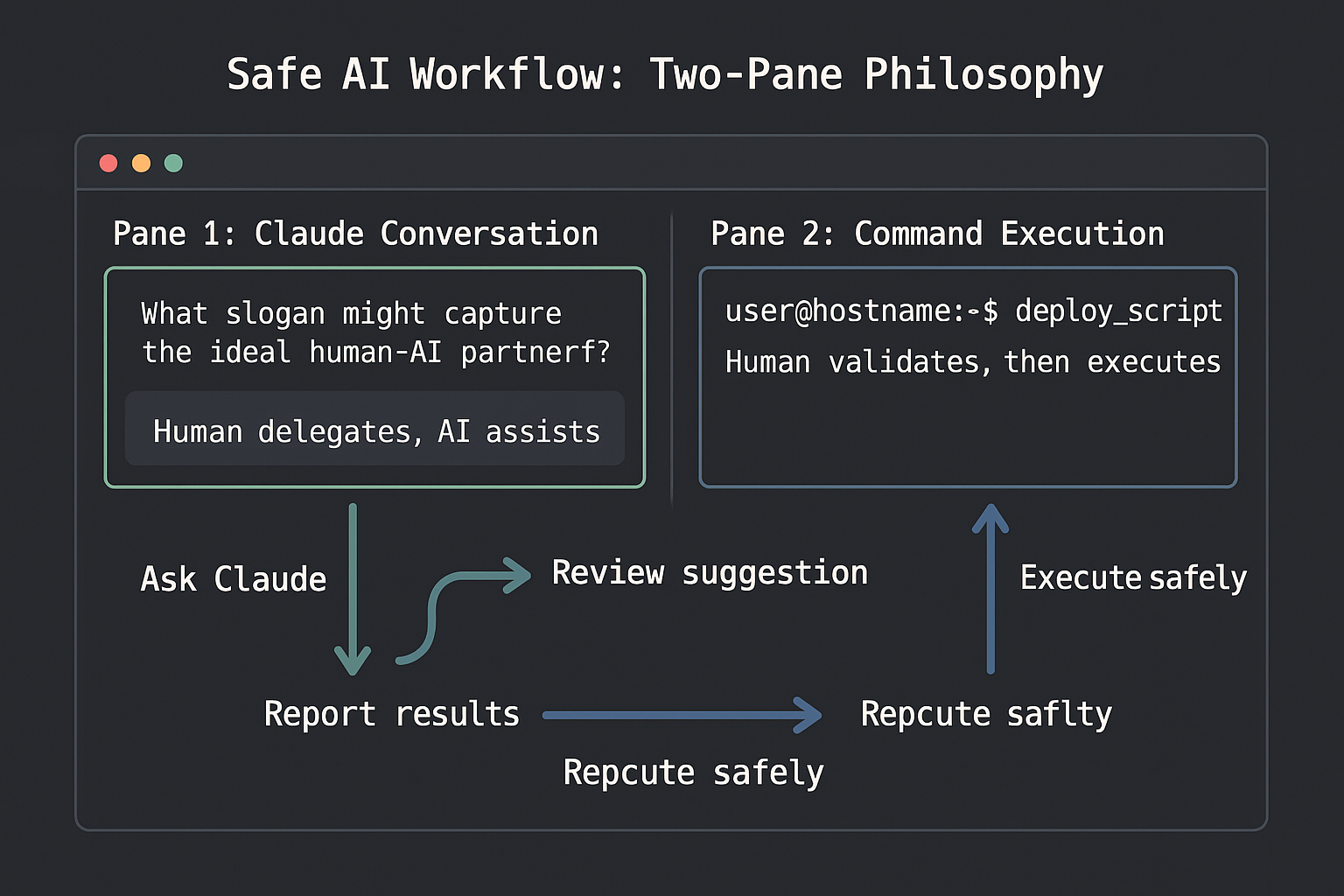
- Screenshot/gif of "Claude in pane 1, commands in pane 2".
Two-Pane Workflow Diagram
3. Step-by-Step Walkthrough
Note on Installation
Installation details may vary by platform. Stick to the official docs for commands and keep it high-level on camera.
Step 1 — Install Claude Code (or confirm it's installed)
Refer viewers to the official install page and show the key verification command:
claude --version
claude help
Explain:
- The CLI reference specifies flags like
--tools,--verbose,--version. You just checked that the binary exists and responds. - If you want, mention permissions (Read/Write/Bash/MCP) but promise a full deep dive later.
Step 2 — Create a Claude session in tmux
In the terminal:
tmux new -s claude-devopsInside pane 1:
cd /path/to/your/demo-repo
claude
Explain:
- Claude will typically ask what you want to work on or show a prompt.
- This pane is your conversation and coordination pane.
Then split a second pane (Ctrl-b " or Ctrl-b %) for manual command execution.
Two-Pane Philosophy
Pane 1: we discuss and plan with Claude.
Pane 2: we run commands and inspect output.
This physical separation is straight out of Anthropic's best-practices: keep AI-proposed actions visible and under human control.
Step 3 — Configure Claude for a repo (first workflow)
From Anthropic's "Best practices for agentic coding": you get better results if you teach Claude your tools and constraints and document them in the repo (e.g. CLAUDE.md).
Have learners inside the repo, create CLAUDE.md with:
# Claude Context for this Repo
## Project overview
- This is a simple CI pipeline config repo for ...
## Tools and constraints
- We run GitHub Actions for CI.
- Production secrets are in 1Password (never commit).
## Common tasks Claude can help with
- Explain a failing pipeline step.
- Generate test stubs.
- Draft incident postmortems.
When Claude starts, it will read this file and tailor suggestions.
Ready-to-Use Prompts
Use this operations copilot prompt to set boundaries and expectations with Claude for ops work:
Ops Copilot Prompt
A system prompt that establishes Claude as your operations copilot with clear guidelines: explain reasoning, propose (don't run) commands, warn about risks, and prefer small safe steps.
Using the Prompt
You can paste this at the start of your Claude session, or save it to your repo's CLAUDE.md file so Claude picks it up automatically when you run claude in that directory.
Step 4 — First real mini-task
Have the learner ask Claude:
I want to check the status of our CI pipeline and summarize any recent failures.
What commands should I run?
Claude will respond with something like:
# In pane 2:
gh run list --limit 5
The learner copies, pastes to pane 2, runs, and pastes output back into pane 1 for further analysis.
Exercise: Your First AI-Assisted Task
- Create a session
claude-devopswith 2 panes. - In pane 1, start Claude and ask it to check CI status (or any DevOps/SecOps/RevOps task you do weekly).
- Run the command Claude suggests in pane 2.
- Paste output back into pane 1 for summary.
- Save the transcript in
notes/first-session.md.
4. Instructor Suggestions
Guardrails Matter
The official Anthropic guidance says Claude Code has agentic permissions (Read/Write/Bash). Emphasize that the two-pane workflow is about respecting those powers but keeping a human checkpoint.
Warning about Secrets
Remind learners: if they paste logs that contain API keys or passwords, Claude will see them. This is a human hygiene issue, not a tmux issue, but good to mention.